Integrations · Checkbox · OpenCart

How to connect Checkbox to OpenCart
A step-by-step guide for a store on OpenCart: connecting it to UA Checkout and setting up Checkbox. About 15 minutes, no developer needed.
What works
- A receipt for a card payment is issued automatically once the payment succeeds.
- Cash on delivery: a receipt once the parcel is collected, by the waybill status (if you turn it on).
- An “Issue receipt” button in the order list for any order.
- A retry never creates a second receipt; the receipt link is on the order.
Step-by-step guide
-
1Connect your OpenCart store
Sign up at app.ua-checkout.com → “Connect a store” → OpenCart: enter the site address and get a connection key. Install the free module (OpenCart 3 and ocStore: ua-checkout-opencart3.ocmod.zip, OpenCart 4: uac_checkout.ocmod.zip) under Extensions → Installer, on OpenCart 4 then Install in the list. Then Extensions → Modules → UA Checkout: turn the module on and paste the key. The dashboard confirms the connection by itself; no admin password is needed.
-
2Choose which orders to handle
UA Checkout handles orders from your store's own checkout in assistant mode (Pro and the trial) right after connecting. To have buyers check out on the UA Checkout page, keep the module turned on in its settings and switch the checkout in the dashboard first to «Тест» (only you see it), then to «Увімк.».
-
3Get the register licence key and the cashier PIN
my.checkbox.ua → «Каси» → your register → licence key; «Касири» → the cashier PIN. To try it first without real receipts, use the details of a Checkbox test register.
-
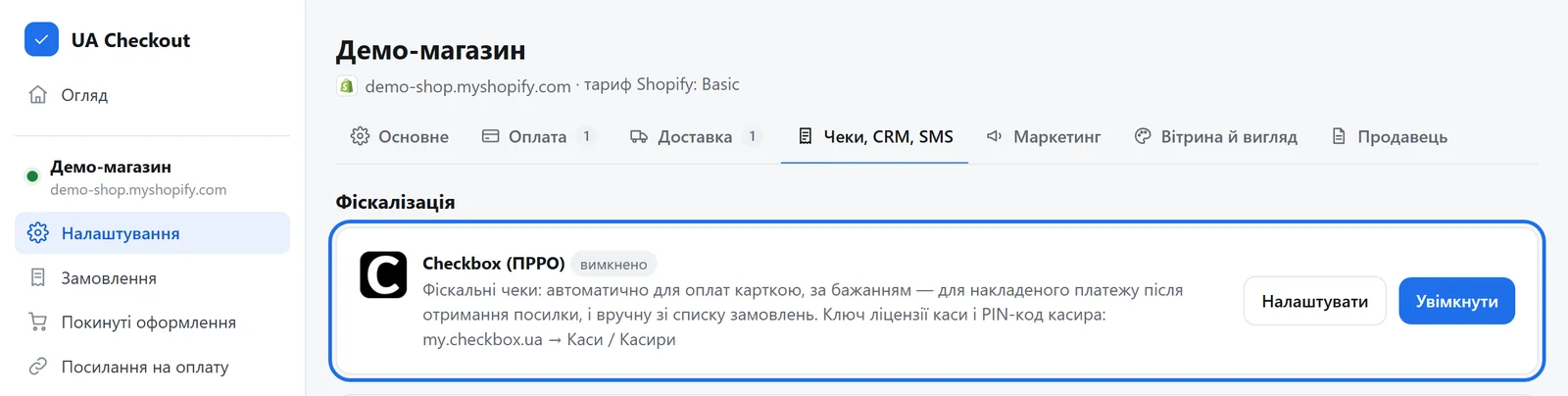
4Open the “Receipts, CRM, SMS” tab
UA Checkout dashboard → the store's “Settings” → the “Receipts, CRM, SMS” tab → the “Checkbox (PRRO fiscal receipts)” card → “Configure”.
-
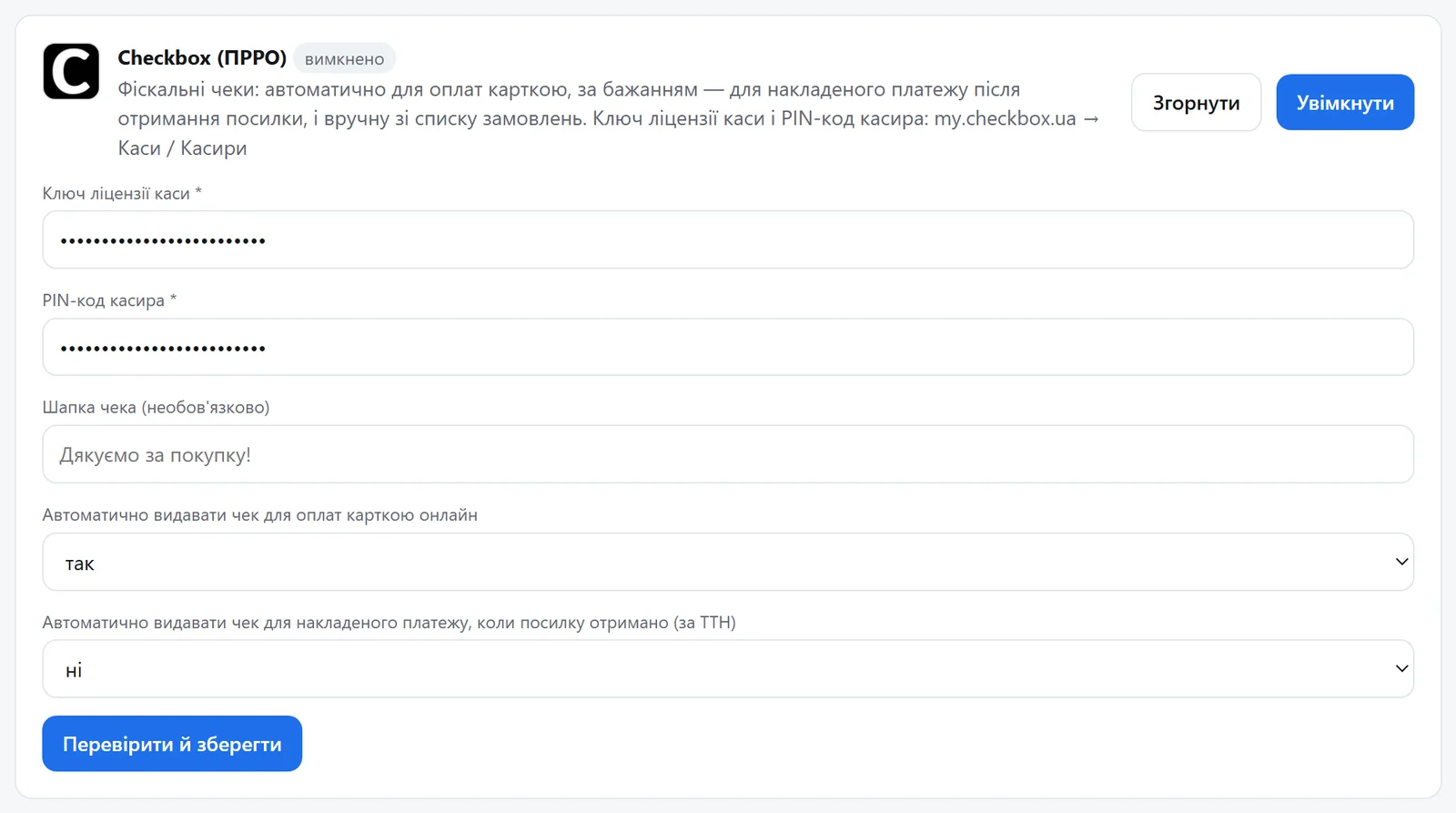
5Paste the key and PIN and choose when receipts go out
The register licence key, the cashier PIN and, if you like, a receipt header; automatic receipts for online card payments (“yes” by default) and for cash on delivery once the parcel is collected by waybill (“no” by default). Press “Verify and save”: UA Checkout checks the key and PIN with Checkbox and turns the integration on.
-
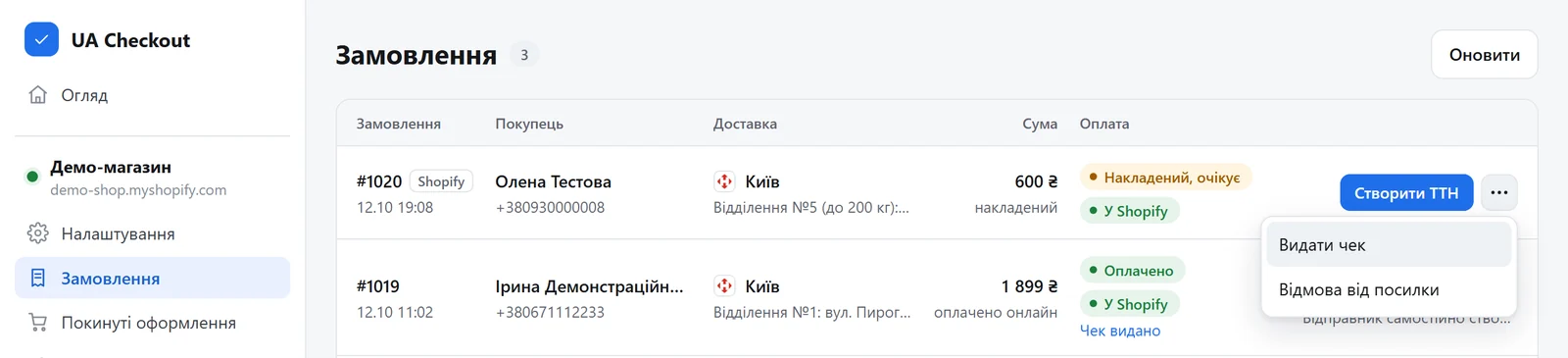
6Receipts go out by themselves, or by hand when needed
For a card payment the receipt goes out right after payment, for cash on delivery once the parcel is collected (if you turned it on). By hand: “Orders” → the “⋯” menu of an order → “Issue receipt”. A retry never creates a second receipt; the order shows “Receipt issued” with a link to the receipt.
Step-by-step guide for your platform: Shopify · WooCommerce · OpenCart · PrestaShop
Want us to set it up together with you? Message us on Telegram — it’s free.