Shopify Payments does not serve companies in Ukraine, so you simply cannot accept card payment via LiqPay in the standard Shopify checkout — there are no Ukrainian acquirers there. For buyers to pay by card, via Privat24 or “Pay in parts”, you need an external checkout that connects LiqPay to your store.
In this article we will look at how to add LiqPay to Shopify through UA Checkout: which payment methods become available, where to get the API keys in your LiqPay account, how to test the payment before launch, how the separate “Pay in parts” method differs from an ordinary card, and how refunds work.
Why LiqPay cannot be connected directly in Shopify
Shopify Payments is unavailable to businesses in Ukraine, and the standard Shopify checkout cannot accept payment through Ukrainian banks. Because of this, stores selling in Ukraine use an external checkout — a separate checkout page that supports Ukrainian delivery and payment methods.
UA Checkout is such a page for Shopify stores selling in Ukraine. It replaces the Shopify checkout step and adds Nova Poshta, cash on delivery and Ukrainian payment providers, including LiqPay. We will cover Shopify's rules on payment outside the standard checkout separately below — it is important to know this before launch.
Which LiqPay methods appear in the checkout
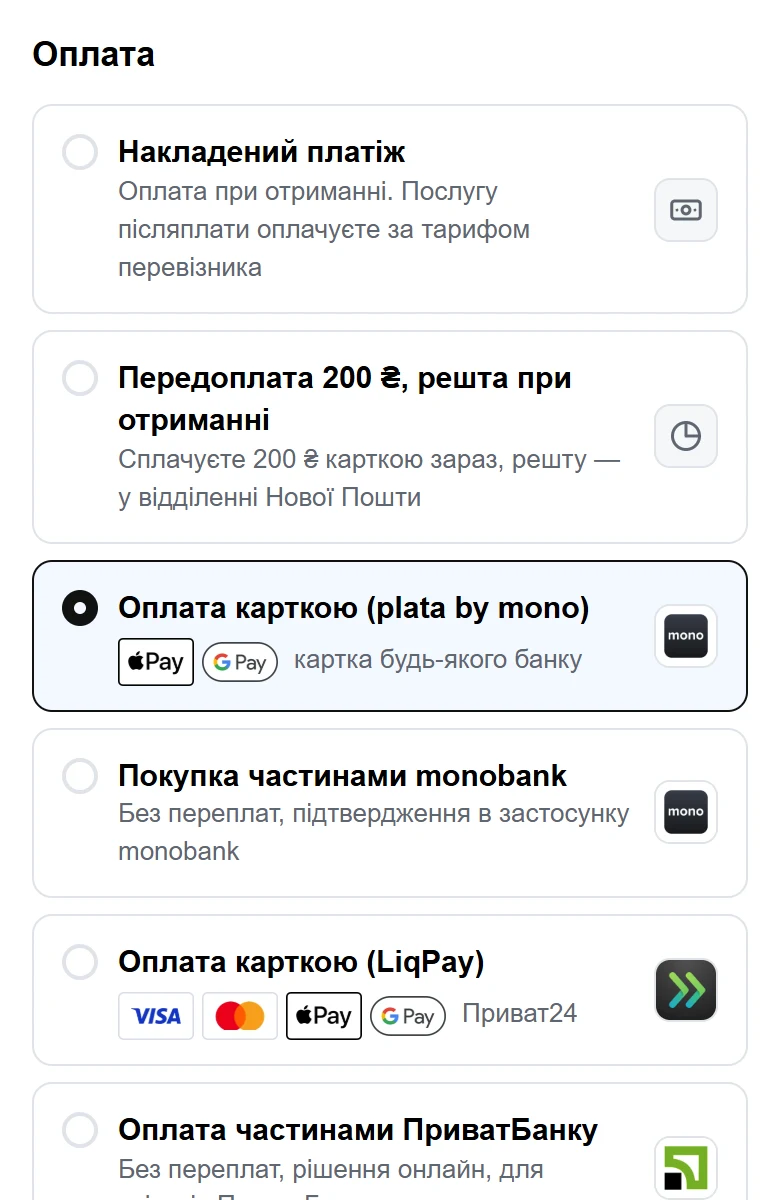
Through LiqPay (PrivatBank) you can open several payment methods in the checkout. The buyer chooses the one they want and completes the payment on the provider's page.
| Payment method | What the buyer gets |
|---|---|
| Visa / Mastercard card | Card payment on a secure LiqPay page |
| Apple Pay / Google Pay | Fast payment with a saved card on the phone |
| Privat24 | Payment from a Privat24 account |
| “Pay in parts” | Instalments from PrivatBank, a separate item in the list of methods |
Money from any of these methods goes straight to your LiqPay account. UA Checkout never receives buyers' funds and does not see card details.
How to connect LiqPay to Shopify through UA Checkout
The connection requires no developer and takes about 15 minutes. The general sequence is as follows:
- Sign up for UA Checkout and, following the instructions in the dashboard, create an app in the Shopify Dev Dashboard, then paste its Client ID and Client Secret. The script will install into the theme automatically.
- In your LiqPay account, copy the API keys (where exactly — below).
- In the UA Checkout dashboard, select LiqPay and paste both keys.
- Enable the methods you need: card, Privat24 and “Pay in parts”.
- Test the payment on the UA Checkout demo (and, if available, in LiqPay test mode).
- Once everything works, enable card payment for buyers.
If something does not work, support helps you connect for free on Telegram.
Where to get LiqPay keys
LiqPay keys are obtained in your account at liqpay.ua — find in the account settings the section where LiqPay issues API keys. See the LiqPay documentation for the exact section and field names, as the interface may change.
You paste both keys into the UA Checkout dashboard — there is no need to enter them anywhere else.
Test mode: LiqPay and the demo
Check the LiqPay documentation and your account settings to see whether LiqPay has a separate test mode for payments without charging real money.
In addition, you have the UA Checkout demo: on it you can see real Nova Poshta branches, the delivery price and all payment methods, while no order is created and no money is charged. It is handy for showing the future checkout page before enabling it for buyers.
If you are migrating from another checkout, use UA Checkout test mode: ordinary buyers stay on your current checkout, while you can switch to UA Checkout only via a special link. This way you test LiqPay on a live store without risk to sales.
“Pay in parts” from PrivatBank — a separate method
“Pay in parts” from PrivatBank is a separate item in the list of payment methods, not the same as card payment. The buyer chooses it themselves and sets up the instalments on PrivatBank's side. For the store this is a way to give customers a more convenient payment option through the same LiqPay.
If you also need instalments from monobank or pay in parts from other banks, these can also be added as separate methods. We have described how this works with monobank in the guide monobank (plata by mono) and Shopify.
Refunds
A refund made in Shopify is, if you wish, automatically sent to the payment provider, including LiqPay. That is, you issue a refund as usual in the Shopify admin, and UA Checkout passes it on to LiqPay. Enable this option in the dashboard if you want refunds to go through automatically.
Where the money goes and how safe it is
In UA Checkout, buyers' money always goes straight to your accounts — the service is not an intermediary in the payment and does not receive customers' funds. Card details are entered on the LiqPay page, not in UA Checkout. Secrets and personal data are stored encrypted (AES-256-GCM) on servers in the EU.
By default only cash on delivery is enabled — a so-called safe start. You enable card payment outside Shopify yourself, when you are ready. If UA Checkout suddenly becomes unavailable, buyers automatically get the standard Shopify checkout, so sales do not stop; there is also a one-click emergency shutdown in the dashboard or in the Telegram bot.
Shopify rules worth knowing
Shopify's terms (API License section 2.3.18 and Terms of Service 1.8, 4.5) do not allow processing payments and orders outside Shopify Checkout without Shopify's written permission. Similar services for Ukrainian stores have worked this way for years, but Shopify may restrict such integrations. UA Checkout warns about this during connection and reduces the risk: by default only cash on delivery and automatic fallback to the standard checkout. UA Checkout is also installed as a snippet in the store theme and works before the Shopify checkout, so Shopify disabling additional scripts on the Thank you and Order status pages does not affect it.
How much it costs
As of October 2026, UA Checkout has a free plan — up to 30 orders per calendar month (Kyiv time) with all payment and delivery methods and the “Powered by UA Checkout” badge at checkout. After the limit, new buyers see the standard Shopify checkout until the 1st of the next month.
The Pro plan costs 790 UAH per month per store: no order limit, no badge, 0% of sales, abandoned cart reminders via Viber or SMS. Card payment via LiqPay, and you can cancel at any time in the dashboard. Every new store gets 14 days of Pro for free without a card.
To give it a try, create an account and connect LiqPay using the steps above. If your buyers often choose payment at the branch, also check out the guide on cash on delivery in Shopify — it can be combined with LiqPay in the same checkout.