When a buyer writes in Instagram Direct or Viber “I want this one”, the conversation usually turns into a long exchange: city, branch, full name, phone number, payment details, a screenshot of the receipt. A manager copies all of this into Shopify by hand, and a mistake in the branch number or the amount only comes to light after the parcel has been sent.
In this article, we explain how payment links in UA Checkout work for Shopify stores: what the buyer sees, what you get, how to set up selling without a cart, and which limitations you should know about in advance, including Shopify's rules on placing orders outside Shopify Checkout.
What a payment link is and how it works
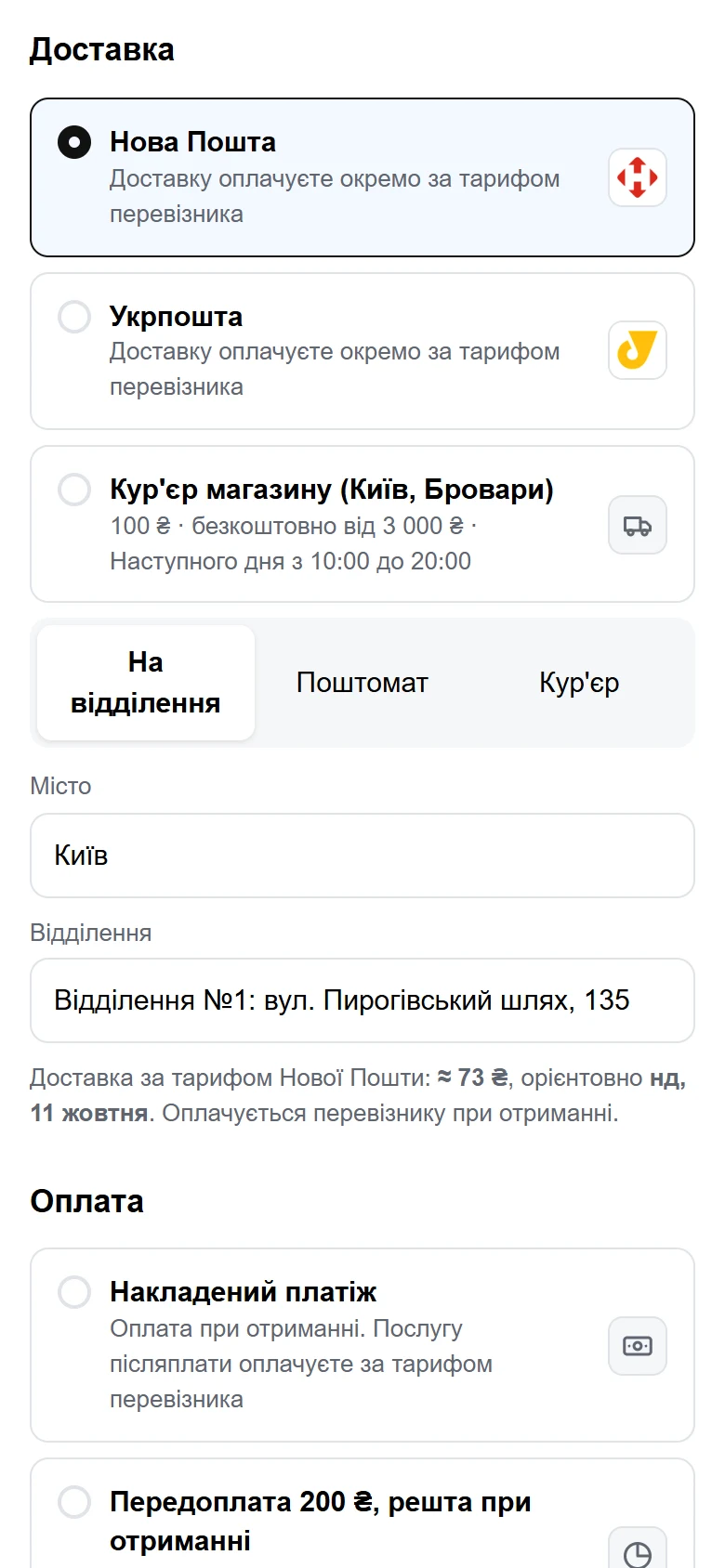
A payment link is an address you create in the UA Checkout dashboard and send to the buyer via any messenger. It opens the checkout page with the products you selected. The buyer does not need to look for the product on the website and add it to the cart: they go straight to entering their contact details and choosing delivery and a payment method.
From there, everything works just as it does with a regular UA Checkout order:
- prices, discounts and stock levels are calculated by Shopify itself;
- the buyer sees the actual Nova Poshta delivery cost and the estimated delivery date before paying;
- the completed order is created in your Shopify admin with delivery, payment method and tags;
- the money goes directly to the store's accounts; UA Checkout does not receive buyers' funds and does not see card details.
What the buyer and the store get
| Buyer | Store | |
|---|---|---|
| Products | Opens a page with the products already selected | Does not copy orders from the chat by hand |
| Delivery | Chooses a Nova Poshta branch, parcel locker or courier, and sees the price and estimated date | Gets the exact branch details in the Shopify order |
| Payment | Chooses from the methods the store has enabled | The money goes to the store's own accounts |
| Confirmation | Can tick “do not call to confirm” | Sees this flag in the order |
| After the order | Gets a thank-you page | Telegram notifications, waybills in the dashboard, any integrations you have connected |
Which delivery and payment methods are available via the link
The buyer sees the options you have set up in the dashboard.
Delivery:
- Nova Poshta: branches, parcel lockers and courier to the door, with the actual price from the Nova Poshta API (requires your API key and sender city);
- Ukrposhta: branches with the actual price (requires a contract and keys from Ukrposhta);
- pickup from the store's address, your own courier in selected cities.
Payment:
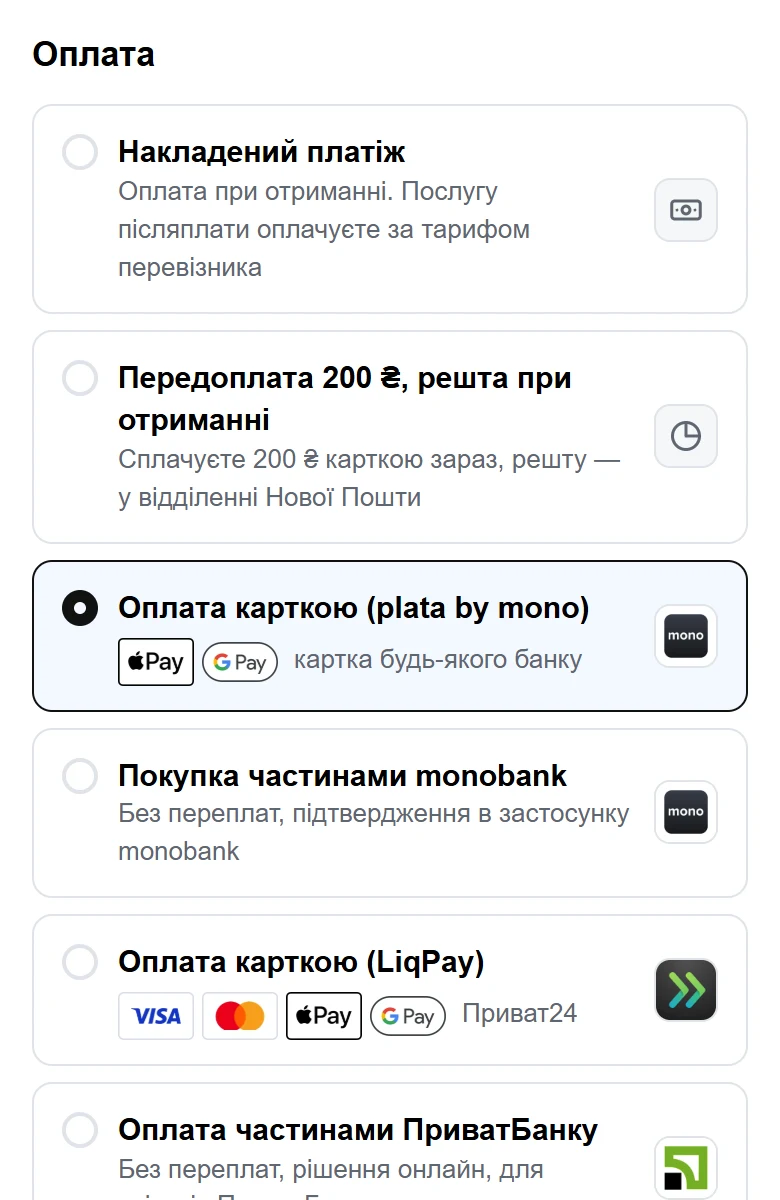
- cash on delivery with Nova Poshta; the buyer sees the estimated delivery cost and the carrier's money transfer fee in advance;
- partial prepayment, for example 200 UAH by card now and the rest on receipt;
- monobank (plata by mono), LiqPay, WayForPay, hutko, Fondy, RozetkaPay, Portmone, EasyPay, NovaPay, Tranzzo;
- “Pay in parts” from monobank, PrivatBank, A-Bank and PUMB via Tranzzo, subject to the banks' terms;
- bank transfer (IBAN), where you mark the order as paid yourself.
Each provider works once you have connected it in the dashboard. Learn more about cash on delivery and protection against refused parcels in the article Cash on delivery in Shopify.
How this differs from other ways of selling via messengers
| Method | How the order is placed | What to bear in mind |
|---|---|---|
| Payment details in the chat | The manager collects the details by hand, the buyer sends a receipt | Delivery details and payment status are copied into Shopify by hand |
| Shopify draft order (Draft orders) | The manager creates the order in the admin and sends an invoice | Payment goes through providers available in Shopify Checkout; Shopify Payments does not serve businesses in Ukraine; there is no choice of Nova Poshta branch from a list |
| UA Checkout payment link | The buyer chooses delivery and payment on the UA Checkout page | Shopify only; Shopify's rules on placing orders outside Shopify Checkout apply (see below) |
How to set up selling via payment links
- Sign up in the UA Checkout dashboard with Google, Apple, Telegram or email.
- Connect your Shopify store: create an app in the Shopify Dev Dashboard following the step-by-step guide in the dashboard and paste in the Client ID and Client Secret. It takes about 15 minutes and does not require a developer; support on Telegram helps free of charge.
- Set up delivery: your Nova Poshta API key, sender city and, if needed, Ukrposhta, pickup or your own courier. To find out how, read the article How to connect Nova Poshta to Shopify.
- Enable payment methods. On Shopify, only cash on delivery is enabled by default; you enable card payments outside Shopify yourself.
- Create a link with the products you need in the dashboard and send it to the buyer via Instagram, Viber, Telegram or another messenger.
- Process the order: it will appear in the Shopify admin, and a Nova Poshta or Ukrposhta waybill can be created in the dashboard in one click or automatically, with the tracking number added to the order.
To see the page through the buyer's eyes, open the checkout demo: it has real Nova Poshta branches, the delivery price and all payment methods, but no order is created and no money is charged.
What happens after the order is placed
An order placed via a link is processed just like any other order through UA Checkout. Each integration works once the store has connected it in the dashboard:
- the owner's Telegram bot sends a notification about the new order;
- KeyCRM or SalesDrive receive the order with Nova Poshta details, payment, UTM tags and click identifiers;
- Checkbox or Vchasno.Kasa issue a fiscal receipt for every card payment;
- TurboSMS or AlphaSMS send the buyer a message via Viber or SMS;
- purchases are also sent server-side to Meta, Google Analytics 4, TikTok and other systems.
If a buyer refused a cash-on-delivery parcel, cash on delivery is disabled for their phone number, which protects against repeated refusals.
Limitations you should know about
Shopify's rules. Shopify's API License and Terms of Use (section 2.3.18) and Terms of Service (1.8, 4.5) do not allow payments and orders to be processed outside Shopify Checkout without Shopify's written permission. Similar services for Ukrainian stores have worked this way for years, but Shopify may restrict such integrations. UA Checkout informs you about this when you connect and reduces the risk: only cash on delivery is enabled by default, and if UA Checkout is unavailable, buyers are automatically sent to the standard Shopify checkout. Read more in the article Is a third-party Shopify checkout legal in Ukraine.
Platform. Payment links are confirmed for Shopify only. On WooCommerce, OpenCart and PrestaShop, UA Checkout works as a page replacing the store's own checkout or as an assistant for it, but payment links are not confirmed for these platforms.
No free plan. After the 5-day trial, payment links work only on Pro; without payment UA Checkout switches off.
How much it costs
As of November 2026:
| Plan | Price | What's included |
|---|---|---|
| Trial | 0 UAH, 5 days from connection | Everything in Pro, no card |
| Pro | 790 UAH per month per store | No order limit, all payment and delivery methods, abandoned cart reminders, BAS / 1C sync, 0% of sales |
Every new store gets 5 days of Pro from connection without a card. For a full description of the plans, see the pricing section.