A Shopify store owner is not always sitting in the admin, yet you want to hear about a new order or a failure straight away. That is why the most common question is how to set up Shopify order notifications in Telegram so they arrive directly in the messenger.
In this article we explain what the UA Checkout Telegram bot sends and how to connect it. We also cover why you need the emergency switch-off button and what the bot does not do.
What the Telegram bot sends to the store owner
The bot is meant for you, not for buyers. It works once you connect it in the UA Checkout dashboard.
| Feature | What you get |
|---|---|
| New orders | A Telegram message as soon as an order is created |
| Problems | A message when something needs your attention |
| Daily summary | A summary of the day every evening at 20:00 |
| Emergency switch-off | A button that switches off the UA Checkout page for the store |
| Your own bot | Notifications can be sent via your store's bot instead of the UA Checkout bot |
The order itself is created in the Shopify admin with delivery, payment method and tags. The bot only notifies you about it, so you keep processing orders in the usual place.
What the emergency switch-off gives the buyer and the store
If something goes wrong, the UA Checkout page can be switched off with a single tap in the dashboard or in the Telegram bot. Buyers then get the standard Shopify checkout, and the store keeps accepting orders.
The store can also switch to the standard checkout without your involvement. If UA Checkout is unavailable, buyers automatically get the Shopify checkout.
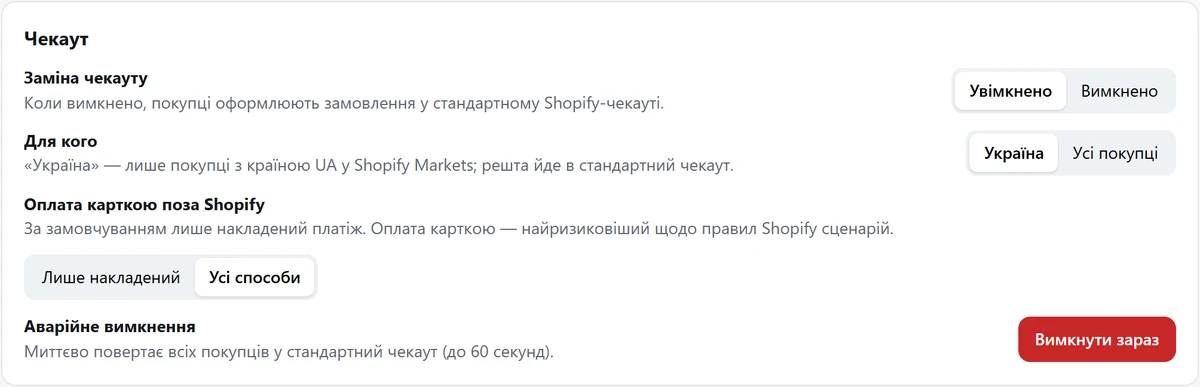
Here is what you should know about Shopify's rules. The Shopify API License and Terms (section 2.3.18 of the API License and Terms of Use, clauses 1.8 and 4.5 of the Terms of Service) do not allow processing payments and orders outside Shopify Checkout without Shopify's written permission. Similar services for Ukrainian stores have worked this way for years, but Shopify may restrict such integrations.
UA Checkout warns about this during connection and reduces the risk in two ways:
- by default, only cash on delivery is enabled;
- if the service is unavailable, buyers are automatically switched to the standard checkout.
Read more about these rules in the article is a third-party Shopify checkout legal.
How to connect Telegram notifications for Shopify orders
Connection takes about 15 minutes and does not require a developer. If something does not work, support in Telegram will help you connect for free.
- Sign up in the dashboard via Google, Apple, Telegram (the @uacheckout_bot bot) or email and password.
- Connect your store. Following the step-by-step guide in the dashboard, create an app in the Shopify Dev Dashboard and paste its Client ID and Client Secret into the dashboard. The script is installed in your theme automatically.
- Choose the operating mode: the UA Checkout page instead of the Shopify checkout, or the assistant for the standard checkout.
- In the dashboard, enable Telegram notifications for the owner. You can choose the UA Checkout bot or your store's own bot. Ask support how to connect your own bot.
- Make sure you can see the emergency switch-off button both in the dashboard and in the bot.
If you are moving from another checkout, first test everything on your live store in test mode. In this mode buyers see your current checkout, and the orders you place for testing are marked as test orders.
Do notifications work if you keep the standard Shopify checkout
Yes. The “Assistant for the standard Shopify checkout” mode is available on Pro and during the trial period. In this mode, orders placed through Shopify's own checkout are sent to you in Telegram.
The assistant can also pass orders to KeyCRM or SalesDrive, send SMS or Viber messages to buyers and create Checkbox or Vchasno.Kasa receipts. It also generates Nova Poshta waybills (TTN). Each of these integrations works once the store connects it.
Limitations of this mode: during checkout the buyer does not see the list of Nova Poshta branches, the delivery price and date, or the UA Checkout payment methods. Read more about this mode in the article about the checkout assistant.
On WooCommerce, OpenCart and PrestaShop, the assistant for the store's own checkout sends Telegram notifications in the same way.
What happens after an order
- The order appears in the Shopify admin, and you receive a message in Telegram.
- If a CRM is connected, the order is passed there with Nova Poshta data, payment and UTM (see KeyCRM and Shopify).
- A waybill can be created from the dashboard with a single click or automatically. The tracking number is passed to the Shopify order (read more in the article about waybills in Shopify).
- At 20:00 the bot sends the daily summary.
If the buyer did not complete a card payment, the order does not appear in the admin. It waits as a draft until the payment is confirmed.
Limitations worth knowing
- The bot sends messages only to the store owner. Messages to buyers go via TurboSMS or AlphaSMS, if the store connects one of these services.
- The bot does not replace the Shopify admin. Orders are processed in the Shopify admin; in the dashboard you can, among other things, create a waybill.
- Plan and trial period, as of November 2026: the first 5 days of Pro are free from the moment of connection, with no card required. After that, the Pro plan costs 790 UAH per month per store, with no order limit and no percentage of sales (details in the pricing section).
- What happens without payment: UA Checkout is switched off for the store, and buyers get the standard Shopify checkout. After payment, everything is switched back on with the same settings.
You can try connecting after signing up in the dashboard.