When a manager works in KeyCRM and orders come from Shopify, the main question is whether everything needed for shipping and analytics will reach the CRM. That means the Nova Poshta city and branch, the payment method and the traffic source. The standard Shopify checkout has no option to choose a Nova Poshta branch from a list, so this data has to be either dug out of a free-form address or entered manually.
Below we explain exactly what UA Checkout sends to KeyCRM, how to connect the integration, how the two operating modes differ and what limitations apply.
What is sent to KeyCRM from a Shopify order
UA Checkout creates the order in your Shopify admin with delivery, payment method and tags. If the store has connected KeyCRM in the dashboard, the order also arrives in KeyCRM with the following data:
| Data | What the manager gets in KeyCRM |
|---|---|
| Order | The order from your store (prices and discounts are calculated by Shopify) |
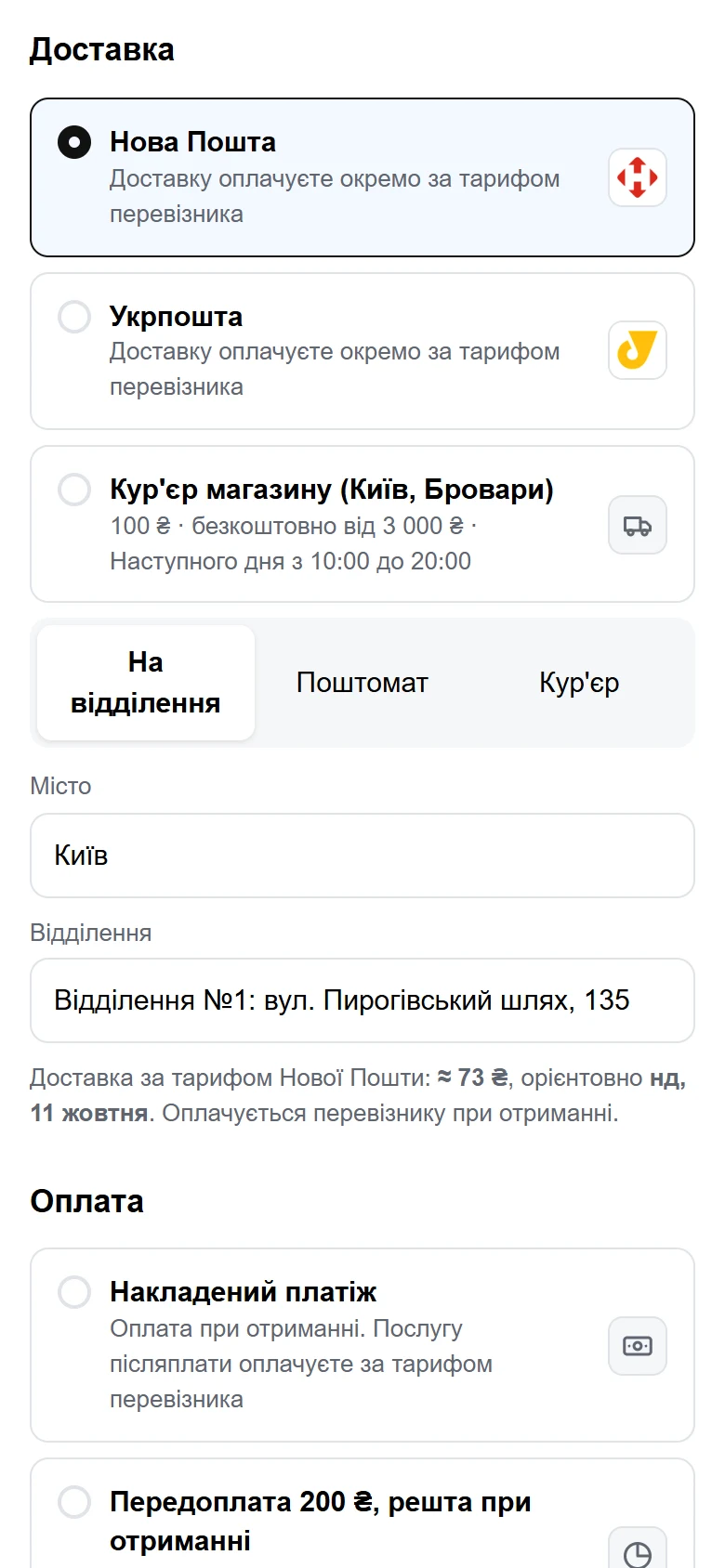
| Nova Poshta | The city, branch, parcel locker or courier address the buyer chose at checkout |
| Payment | The selected method: cash on delivery, partial prepayment, card payment via monobank, LiqPay and other providers |
| UTM tags | The source, medium and campaign the buyer came from |
| Click ID | Ad click identifiers, so the order can be matched to the ad |
On the UA Checkout page, the buyer sees the actual delivery cost and estimated date before paying. They choose the branch from a list, so the CRM receives a specific pickup point rather than text that has to be parsed manually.
How to connect KeyCRM to Shopify via UA Checkout
You do not need a developer to connect. If something does not work, support on Telegram will help free of charge.
- Register in the UA Checkout dashboard. Create an app in the Shopify Dev Dashboard following the step-by-step guide and paste its Client ID and Client Secret. The theme script is installed automatically.
- Open the KeyCRM card in the integrations section of the dashboard and see which access details it asks for. Find them in your KeyCRM account. If you do not know where they are, ask KeyCRM support.
- Enter the details in the integration card and save the settings.
- Test the data transfer on your live store in test mode. The UA Checkout checkout is visible only to those who open the store via a special link. Read more in the article about test mode.
- Once the order in KeyCRM looks the way you need, turn on the checkout for buyers.
Test orders have the uac-test tag and the note «ТЕСТОВЕ ЗАМОВЛЕННЯ» (TEST ORDER), so they are easy to filter out in KeyCRM.
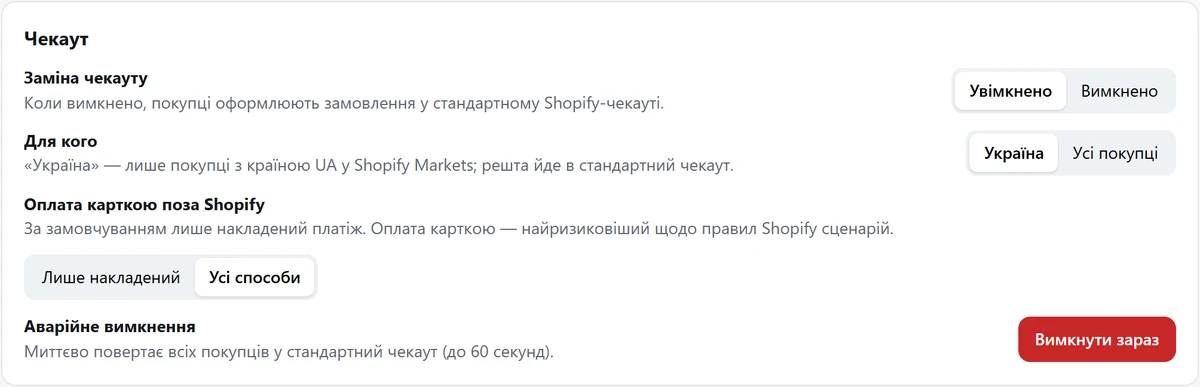
Two modes: the UA Checkout checkout or the assistant for the Shopify checkout
Orders can be sent to KeyCRM in two ways.
| UA Checkout page instead of the Shopify checkout | Assistant for the standard Shopify checkout | |
|---|---|---|
| Plan | Pro and the 5-day trial period | Pro and the 5-day trial period |
| Nova Poshta branch | The buyer chooses from a list | Recognised from the address the buyer entered |
| Delivery price at the time of ordering | Actual, from the Nova Poshta API | Your Shopify shipping rates |
| UA Checkout payment methods | Yes | No, only Shopify payment methods |
In assistant mode, an address is not treated as a branch. If the branch or parcel locker number is not recognised, the order is flagged in the dashboard and no waybill (TTN) is created at random. It is worth renaming the address field, for example to “Nova Poshta branch number or address”. Read more in the article about the checkout assistant.
As of October 2026, Pro costs UAH 790 per month per store, with no order limit and no commission on sales. A plan comparison is available in the pricing section.
What happens after the order
The order appears in the Shopify admin and in KeyCRM. You can then connect other integrations in the UA Checkout dashboard:
- Nova Poshta waybills in one click or automatically, with the tracking number added to the Shopify order (see the article about waybills);
- fiscal receipts via Checkbox or Vchasno.Kasa;
- SMS and Viber messages to the buyer via TurboSMS or AlphaSMS;
- Telegram notifications for the owner.
Each of them works only after you connect it.
Limitations and rules worth knowing
- Shopify rules. The API License and Terms of Use (section 2.3.18) and the Terms of Service (1.8, 4.5) do not allow processing payments and orders outside Shopify Checkout without Shopify's written permission. Similar services for Ukrainian stores have worked this way for years, but Shopify may restrict such integrations. UA Checkout warns about this during connection. To reduce the risk, only cash on delivery is enabled by default, and if the service is unavailable, buyers automatically get the standard Shopify checkout. Read more in the article about the rules. In assistant mode, orders and payments remain in Shopify Checkout.
- No free plan. After the 5-day trial, without paid Pro UA Checkout and the KeyCRM transfer switch off and buyers get the standard Shopify checkout.
- The KeyCRM plan is paid separately, on KeyCRM's terms.
- WooCommerce, OpenCart and PrestaShop. For these platforms, sending orders to the CRM is confirmed in assistant mode for the store's own checkout (Pro and trial period).
- Alternative. If your team works in SalesDrive, that integration is also available in the dashboard.