You want every new order to appear in Telegram straight away, go into your CRM, and get a fiscal receipt and a Nova Poshta waybill. At the same time, you are not ready to replace your checkout: it works for you, your buyers are used to it, or you simply do not want to change anything at the checkout stage for now.
For exactly this situation, UA Checkout has a standard checkout assistant mode. Below we explain what it does on Shopify, WooCommerce, OpenCart and PrestaShop, how it identifies the Nova Poshta branch, what happens when the branch is not recognised, and what its limitations are.
What the standard checkout assistant is
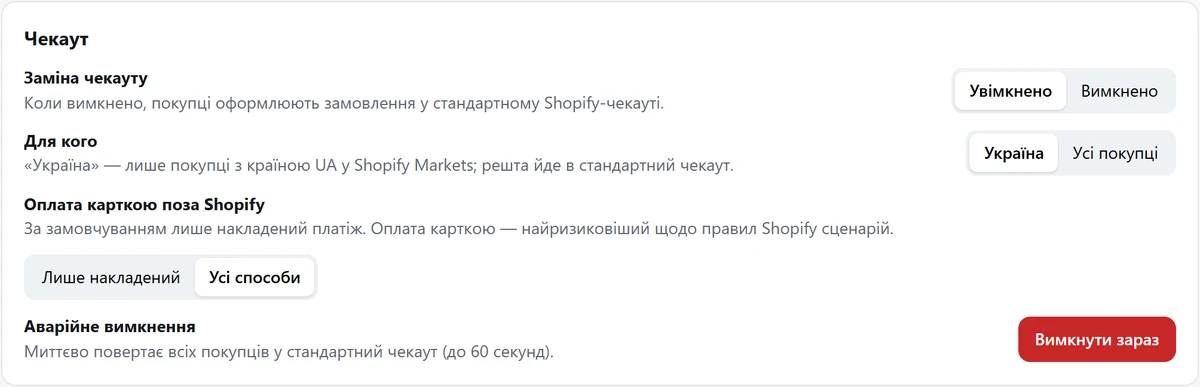
It is a mode in which buyers place orders in the store’s usual checkout. UA Checkout steps in after the order has been created and processes it. On Shopify the mode is called “Shopify standard checkout assistant”. On WooCommerce, OpenCart and PrestaShop it is the assistant for the store’s own checkout.
Once the relevant integrations are connected in the dashboard, orders get:
- Telegram notifications to the owner about each new order;
- transfer to a CRM: KeyCRM or SalesDrive;
- SMS or Viber messages to the buyer via TurboSMS (Viber first, then SMS) or AlphaSMS;
- fiscal receipts from Checkbox or Vchasno.Kasa for paid orders;
- Nova Poshta waybills (TTN), created from the dashboard or automatically.
Each integration only starts working once you connect it in the UA Checkout dashboard. For example, without Checkbox connected there will be no receipts, and without a Nova Poshta API key there will be no waybills.
Assistant or checkout replacement: what’s the difference
UA Checkout can be used in two ways. The first: the UA Checkout page replaces the checkout step. The second: the assistant processes orders from your own checkout. Comparison:
| Standard checkout assistant | UA Checkout page instead of checkout | |
|---|---|---|
| Where the buyer places the order | In your store’s checkout | On the UA Checkout page |
| List of Nova Poshta branches and parcel lockers | No, the buyer enters the branch number in the address | Yes, with a list of branches and parcel lockers and a “Nearest to me” button |
| Real delivery price before payment | No, your store’s delivery rates apply | Yes, via the Nova Poshta API |
| Payment methods | Those configured in your store | UA Checkout payment methods: cash on delivery, monobank, LiqPay and others |
| Telegram, CRM, SMS/Viber, receipts, Nova Poshta waybills | Yes, once connected | Yes, once connected |
| Plan | Pro or 5-day trial | Pro or 5-day trial |
How the assistant identifies the Nova Poshta branch
The standard checkout has no list of branches, so the buyer enters the branch number in the address field. The assistant reads it from that field. It recognises entries such as “Branch No. 5”, “Parcel locker 21345” or just a number. It then checks the number against your Nova Poshta account.
To help buyers fill in the field correctly, change its label, for example to “NP branch number or address”. On Shopify this is done in the checkout text settings. On other platforms it depends on your theme or checkout module.
On WooCommerce, the branch is also taken from the fields of the WC Ukr Shipping and morkva UA Shipping delivery plugins. This works in the classic WooCommerce checkout. If you already use one of these plugins, buyers choose their branch as before and the assistant uses their choice.
What happens if the branch is not recognised
The assistant never treats a street address as a branch. If no branch can be found in an order, the order is flagged in the dashboard and no waybill is created at random. You or your manager confirm the branch with the buyer and create the waybill. That way parcels never go to a random address.
Automatic Nova Poshta waybills: where the number goes
You can create a waybill from the dashboard in one click or set up automatic creation. The tracking number is saved in your store:
- Shopify: the tracking number is added to the order in Shopify;
- WooCommerce: the number is added to the order as a customer note, and WooCommerce emails it to the buyer;
- OpenCart: the number is recorded in the order history;
- PrestaShop: the number becomes the order’s tracking number.
For more on waybills, read Shopify TTN: automatic Nova Poshta and Ukrposhta waybills.
Fiscal receipts for website orders
In assistant mode, Checkbox or Vchasno.Kasa receipts are issued for paid orders. To enable this, connect your cash register in the dashboard. The shift opens automatically before the first receipt. Every night at 23:50 it closes with a Z-report. Nightly shift closing can be turned off. How to set up Checkbox is described in Checkbox for Shopify: integration for automatic fiscal receipts.
This is a technical integration, not tax advice. Check with your accountant whether you need a software cash register (PRRO) and for which payments.
Telegram notifications, CRM and buyer messages
The owner receives a Telegram notification about every new order, so there is no need to keep checking the admin panel. If KeyCRM or SalesDrive is connected, the order is sent there and managers work with it in the system they already know. Messages to the buyer can be sent via TurboSMS or AlphaSMS using the store’s own account with that service.
Limitations of the assistant
The assistant does not change what the buyer sees at checkout:
- there is no list of Nova Poshta branches and parcel lockers;
- there is no real Nova Poshta delivery price before payment;
- there are no UA Checkout payment methods. The checkout shows the delivery rates and payment methods configured in your store.
If you need branch selection from a list, an exact delivery price and Ukrainian payment methods right at checkout, consider the UA Checkout page instead of your checkout. For Shopify options, read Shopify checkout in Ukraine: how to choose a solution; for WooCommerce, read WooCommerce in Ukraine: Nova Poshta, cash on delivery and card payments.
How this relates to Shopify’s rules
Shopify’s API License and Terms of Use (section 2.3.18) and its Terms of Service (1.8, 4.5) do not allow processing payments and orders outside Shopify Checkout without Shopify’s written permission. In assistant mode, the order and payment stay in Shopify Checkout. UA Checkout only processes the order after it has been created. For more on the rules, read Is a third-party Shopify checkout legal in Ukraine. These rules apply only to Shopify stores. WooCommerce, OpenCart and PrestaShop run on your own websites.
Pricing and how to get started
As of October 2026, the assistant is available on the Pro plan at 790 UAH per month for one store, with no commission on sales. You can also use it during the 5-day Pro trial, which every new store gets without a card. Pro has no order limit, and there is no free plan: without payment the assistant and UA Checkout switch off. All plans are listed in the pricing section.
- Sign up for the dashboard with Google, Apple, Telegram or email.
- Connect your store. Shopify: create an app in the Shopify Dev Dashboard following the step-by-step guide in the dashboard and paste the Client ID and Client Secret. WooCommerce: enter your site address and approve access in WordPress. OpenCart and PrestaShop: install the module and paste the connection key from the dashboard.
- Turn on the standard checkout assistant.
- Add your Nova Poshta API key and the sender city. Then connect the integrations you need: Checkbox or Vchasno.Kasa, KeyCRM or SalesDrive, TurboSMS or AlphaSMS, Telegram.
- Change the address field label to “NP branch number or address”.
- Regularly review orders in the dashboard whose branch was not recognised.
If you have any questions about connecting, message our support in Telegram. We will help you connect for free.