Once an order in Shopify is confirmed, the most tedious part of the work remains: creating the waybill on the Nova Poshta or Ukrposhta website, printing the label, and remembering to transfer the tracking number back into the order. Doing this by hand for every order wastes the manager's time, and tracking numbers sometimes get lost between browser tabs.
In this article, we'll look at how UA Checkout creates Nova Poshta and Ukrposhta waybills directly from Shopify order data: what's needed to set it up, how “one click” differs from full automation, where the label is printed, and how protection against cash-on-delivery refusals works.
What You Need to Create Waybills Automatically
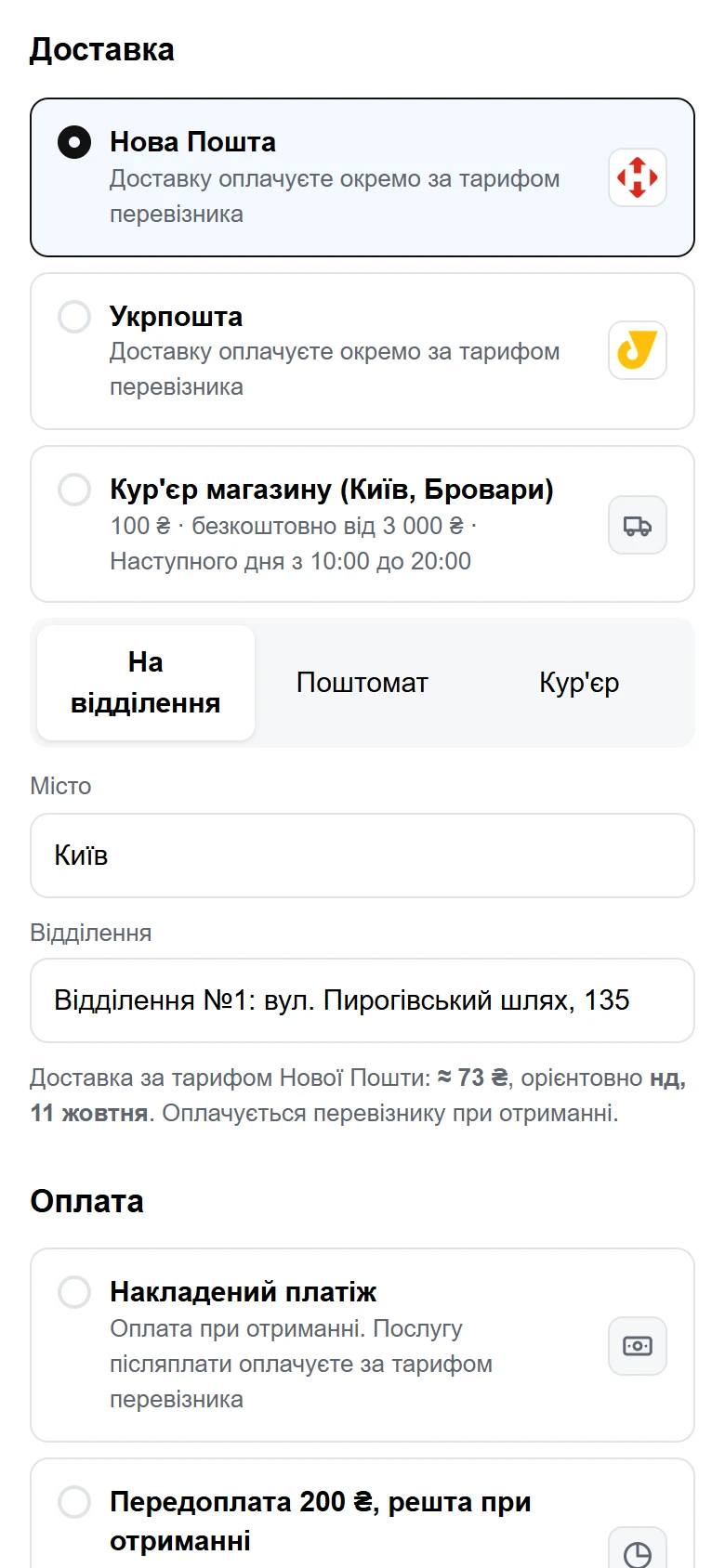
For Nova Poshta, the UA Checkout dashboard calls the carrier's API using the store's own API key and the specified sender's city — the same data that's also used to show the buyer the real delivery price before payment. No additional settings are needed on the Shopify side: the store's theme is connected to UA Checkout just once, and after that the dashboard works with orders that are already created in Shopify.
For Ukrposhta, you additionally need the store's agreement with Ukrposhta and the keys it issues; without them, the dashboard cannot create waybills for this carrier.
How to Set This Up: Step by Step
- Get a Nova Poshta API key in your personal account at novaposhta.ua and note down the sender's city.
- Add the key and sender's city in the delivery settings in the UA Checkout dashboard.
- Choose the waybill creation method — one click from the order list or automatically after the order is placed.
- Check the list of products without a weight specified in Shopify in the dashboard, and set up the parcel dimensions or a standard box.
- If needed, add the Ukrposhta agreement details and keys.
- Create a test waybill, print the label, and make sure the tracking number appears in the Shopify order.
None of these steps requires a developer: the entire UA Checkout checkout, including setting up Nova Poshta, is configured in about 15 minutes.
One Click or Full Automation — Which to Choose
Which option to choose depends on how much control over shipping you want to keep for yourself.
| Option | When the Waybill Is Created | Who It Suits |
|---|---|---|
| One click | The manager clicks a button in the dashboard's order list | When you want to review or confirm the order before shipping |
| Automatic | Immediately after the order is placed | When you need minimal manual work and have a high volume of orders |
Accurate Weight and Parcel Size
The delivery price the buyer sees before payment and the price on the waybill itself must match. The UA Checkout dashboard calculates the price based on the weight of the products from Shopify (or a standard weight set by the store), the packaging weight, and the parcel size — taken from the store's standard box or the product's dimension field, so a light but bulky parcel is priced by volumetric weight, the same way Nova Poshta itself does. The dashboard has a list of products without a weight specified in Shopify, and a comparison of the price the buyer saw with the price on the already created waybill — this is useful for checking before you enable automatic waybill creation.
Label Printing and Tracking Number in Shopify
After the waybill is created, the label can be printed immediately from the UA Checkout dashboard — there's no need to visit the carrier's website separately. The tracking number is automatically added to the corresponding Shopify order, so you can see the shipment status without switching between tabs.
Protection Against Cash-on-Delivery Refusals
When a buyer refuses a parcel with cash on delivery, UA Checkout disables cash on delivery specifically for that buyer's phone number. This doesn't block the buyer entirely — the next order with the same number simply cannot be paid by cash on delivery; only other payment methods remain available.
If You Don't Move Your Entire Checkout to UA Checkout
Automatic waybills are also available to those who keep the standard Shopify checkout for buyers and enable «Помічник для стандартного чекауту Shopify». In this mode, the Nova Poshta branch is determined from the address the buyer entered (for example, “Branch No. 5” or “Parcel locker 21345”), and is verified against your Nova Poshta account. If the branch could not be recognised, the order is flagged in the dashboard, and the waybill is not created blindly.
It's worth renaming the address field in the Shopify checkout in advance, for example to “NP branch number or address”, so that buyers are less likely to enter a street instead of a branch number. In this mode, buyers don't see the real Nova Poshta price or the list of branches during checkout — this is a limitation of the standard Shopify checkout, not UA Checkout; for more on the difference between the options, see the article “Cash on Delivery in Shopify”.
How Much Does This Cost
Waybill creation is included in all UA Checkout plans as of October 2026: on the free plan — within up to 30 orders through UA Checkout per calendar month, and on the Pro plan (790 UAH/month per store) — with no limit on the number of orders. Every new store gets 14 days of Pro free from the moment of connection, no card required, so you can test both automatic waybill creation and label printing before paying.
What If Your Store Runs on WooCommerce, OpenCart, or PrestaShop
As of October 2026, UA Checkout also works with WooCommerce, OpenCart, and PrestaShop, and the waybill created in the dashboard is added to the order on each platform in its own way: in WooCommerce — as a customer note that WooCommerce sends by email, in OpenCart — in the order history, and in PrestaShop — as the order's tracking number. For more on setting up Nova Poshta and payments on WooCommerce, see the article “WooCommerce in Ukraine”.
If you want to see what the branch selection page and the delivery price before payment look like, check out the UA Checkout demo — no order is created there and no money is charged. You can set up automatic waybills for your store by registering in the dashboard.