The standard PrestaShop checkout is not designed for Ukrainian buyers: it lacks the familiar choice of a Nova Poshta branch, cash on delivery with a delivery cost calculation, and Ukrainian payment services. Stores usually cover these needs with several separate modules, each of which has to be configured and updated on its own.
In this article we explain how to add a checkout with Nova Poshta and cash on delivery to PrestaShop using the UA Checkout module. You will learn which versions are supported, how the connection works, what an order looks like in the admin panel, what assistant mode is and how much it costs as of October 2026.
How to add Nova Poshta and cash on delivery to PrestaShop
UA Checkout has worked with PrestaShop since October 2026. You install the free module, and the checkout button takes the buyer to the UA Checkout page. There they choose delivery and a payment method, after which the order is created in your PrestaShop store.
What stays with the store:
- the cart, prices, discounts and taxes are taken from PrestaShop;
- the delivery cost is calculated from the product weights set in the store;
- the order appears in the PrestaShop admin panel with the chosen delivery and payment method.
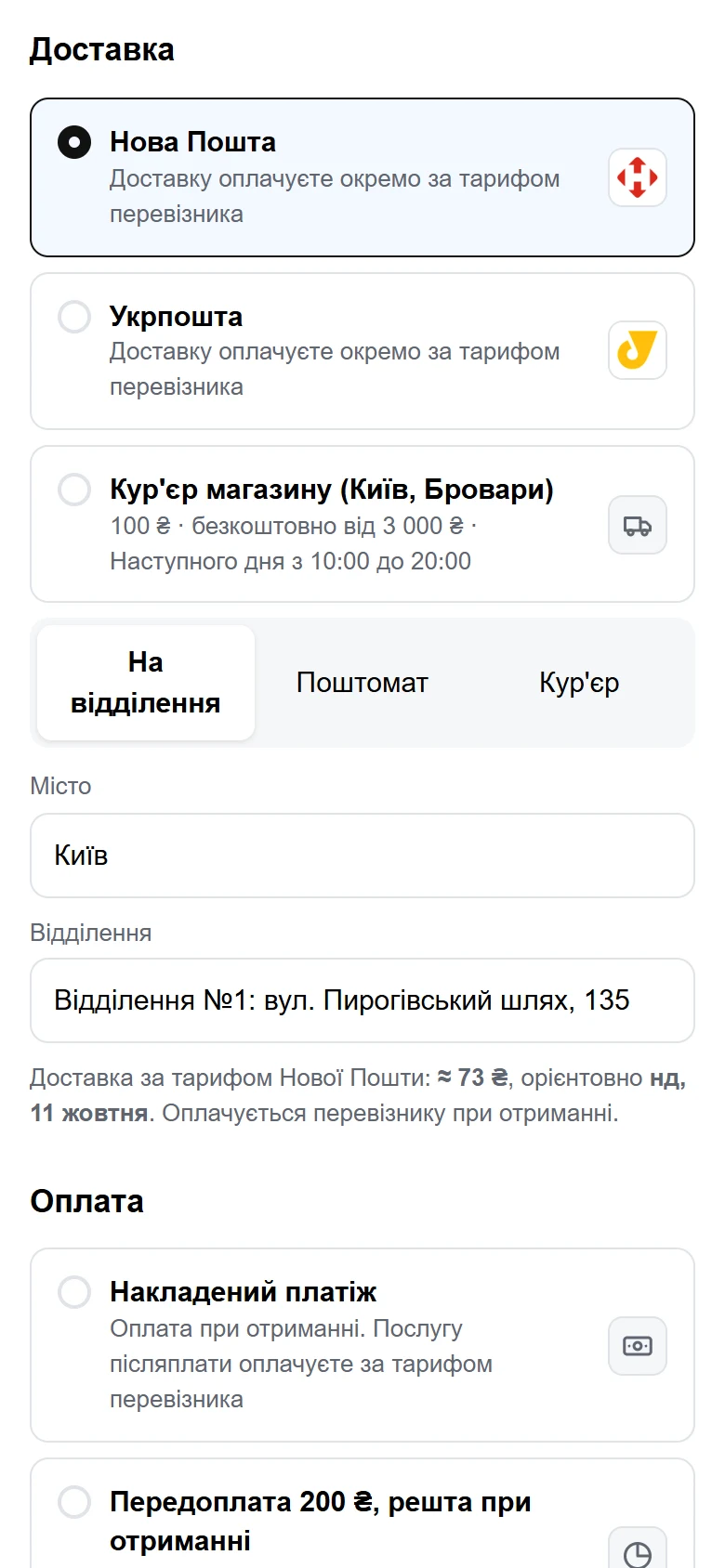
You can see what the page looks like to a buyer in the UA Checkout demo: it has real Nova Poshta branches and all payment methods, but no order is created and no money is charged.
Which PrestaShop versions are supported
The module works with PrestaShop 1.7.6 and later. It has been tested on PrestaShop 8.2. If your store runs version 1.7 or 9 and is the first such store, the UA Checkout team checks the connection together with you. If you are unsure about your version, message support on Telegram before installing.
What the buyer and the store get
| Buyer | Store | |
|---|---|---|
| Delivery | Chooses Nova Poshta delivery on the UA Checkout page | The cost is calculated from product weights in PrestaShop |
| Payment | Chooses cash on delivery or another method enabled by the store | Decides which payment methods to enable from the start |
| Discounts | Enters a cart rule code right on the checkout page | Discounts follow PrestaShop rules |
| Order | Receives a confirmation after checkout | An order in PrestaShop with the carrier “UA Checkout” and the chosen status |
| Waybill | — | The waybill (TTN) number is saved to the PrestaShop order as the tracking number |
The logo for the checkout page is taken from your site’s home page. You can change the logo and colours in the dashboard.
How to connect the UA Checkout module to PrestaShop
- Sign up for the UA Checkout dashboard and add your store. The dashboard will show your connection key.
- Download the free module from ua-checkout.com/downloads/ua-checkout-prestashop.zip and install it in the PrestaShop admin panel.
- Paste the connection key into the module settings. Your admin password is never shared with anyone.
- Connect Nova Poshta and payment methods in the dashboard, and in the module settings choose the order statuses for cash on delivery and for paid orders.
- Enable the module in «Тест» (Test) mode: only your browser will see the UA Checkout page. Place a test order and check how it appears in PrestaShop.
- Once everything works as it should, switch the module on for all buyers.
If UA Checkout does not respond for any reason, buyers stay in the standard PrestaShop checkout, so orders keep coming in.
What an order looks like in the PrestaShop admin panel
Carrier and statuses
Every order from the UA Checkout page gets the carrier “UA Checkout”. The status depends on the payment method: you choose the statuses for cash on delivery and for paid orders in advance in the module settings. This way a manager can see at once which order has already been paid and which will be paid on receipt.
Promo codes
The buyer enters a PrestaShop cart rule code on the UA Checkout page. There is no need to create separate promo codes in the dashboard: the ones already set up in your store work.
Nova Poshta waybill
A Nova Poshta waybill created in the UA Checkout dashboard is added to the PrestaShop order as its tracking number. You can read more in a separate article about Nova Poshta waybills. It uses Shopify as an example, but the principle of creating waybills in the dashboard is the same.
Assistant mode: if you want to keep your own PrestaShop checkout
Some stores do not want to change their checkout, for example because they have already customised it. For them there is assistant mode for your own PrestaShop checkout. It is available on the Pro plan and during the 5-day trial period.
In this mode buyers check out in the usual PrestaShop checkout, and UA Checkout processes the order after it has been created. The following features are available:
- Telegram notifications to the owner about new orders;
- order transfer to a CRM (KeyCRM or SalesDrive);
- SMS or Viber messages to the buyer via TurboSMS or AlphaSMS;
- fiscal receipts via Checkbox or Vchasno.Kasa;
- Nova Poshta waybills.
Each of these integrations works once you connect it in the dashboard. None of them switches on by itself. Bear in mind one limitation: in assistant mode the buyer does not see the UA Checkout choice of branches and payment methods, because they check out in your own checkout.
| UA Checkout page | Assistant mode | |
|---|---|---|
| Where the buyer checks out | On the UA Checkout page | In the standard PrestaShop checkout |
| UA Checkout delivery and payment choice | Yes | No |
| Telegram, CRM, SMS, receipts, waybills | Yes, once integrations are connected | Yes, once integrations are connected |
| Plan | Free or Pro | Pro and trial period |
How much UA Checkout costs for PrestaShop
The prices are the same as for Shopify (as of October 2026):
| Plan | Price | What’s included |
|---|---|---|
| Pro | 790 UAH a month per store | Unlimited orders, assistant mode, 0% of sales |
| Trial period | 5 days of Pro free | From the moment of connection, no card required |
There is no free plan: unless Pro is paid after the trial, UA Checkout switches off and buyers check out using the standard PrestaShop checkout. Read more about the plans in the pricing section.
You can also connect PrestaShop to BAS or 1C through the standard «Обмін з сайтом» (Exchange with website) feature (on Pro and during the trial period). UA Checkout does not sell, install or maintain BAS or 1C; it only takes part in the exchange with your existing database. Please note that the software list of the State Service of Special Communications restricts these programs for public authorities, state-owned enterprises and critical infrastructure facilities.
What UA Checkout does not do in PrestaShop
Only what is described above has been confirmed for PrestaShop. Some features that UA Checkout offers for Shopify have not been announced for PrestaShop: payment links for messengers, an upsell block in the checkout, abandoned checkout reminders and the “Conversion before and after” report. If they matter to you, check their status with support before connecting.
Also note: Shopify’s rules on checking out outside Shopify Checkout apply only to Shopify stores. PrestaShop runs on your own website, so those rules do not apply to it.
What to read next
If you have several stores on different platforms, compare this with how it works on WooCommerce. To try UA Checkout on your store, sign up for the dashboard: the 5 days of Pro start from connection, and no card is required.