In a Shopify store, upsells are usually shown on the product page or in the cart. The final step, checkout, stays empty, even though this is exactly where the buyer has already decided to buy. Stores selling in Ukraine often replace the standard Shopify Checkout with an external page offering Nova Poshta and cash on delivery, and that raises the question: can you show an upsell there too?
In this article we look at how the “Add to your order” block works in UA Checkout, where it gets its products from, how to set it up, what its limitations are, and what other checkouts for Shopify offer.
What is the “Add to your order” block
It is a block on the UA Checkout page that shows products which go well with the contents of the cart. The buyer adds a product with a single tap without going back to the store.
Products for the block come from the Shopify Search & Discovery app:
- complementary products: you specify yourself what to offer alongside a particular product, for example a case for a phone or a filter for a coffee machine;
- related products: Shopify selects them, and you can review and adjust the selection in the app.
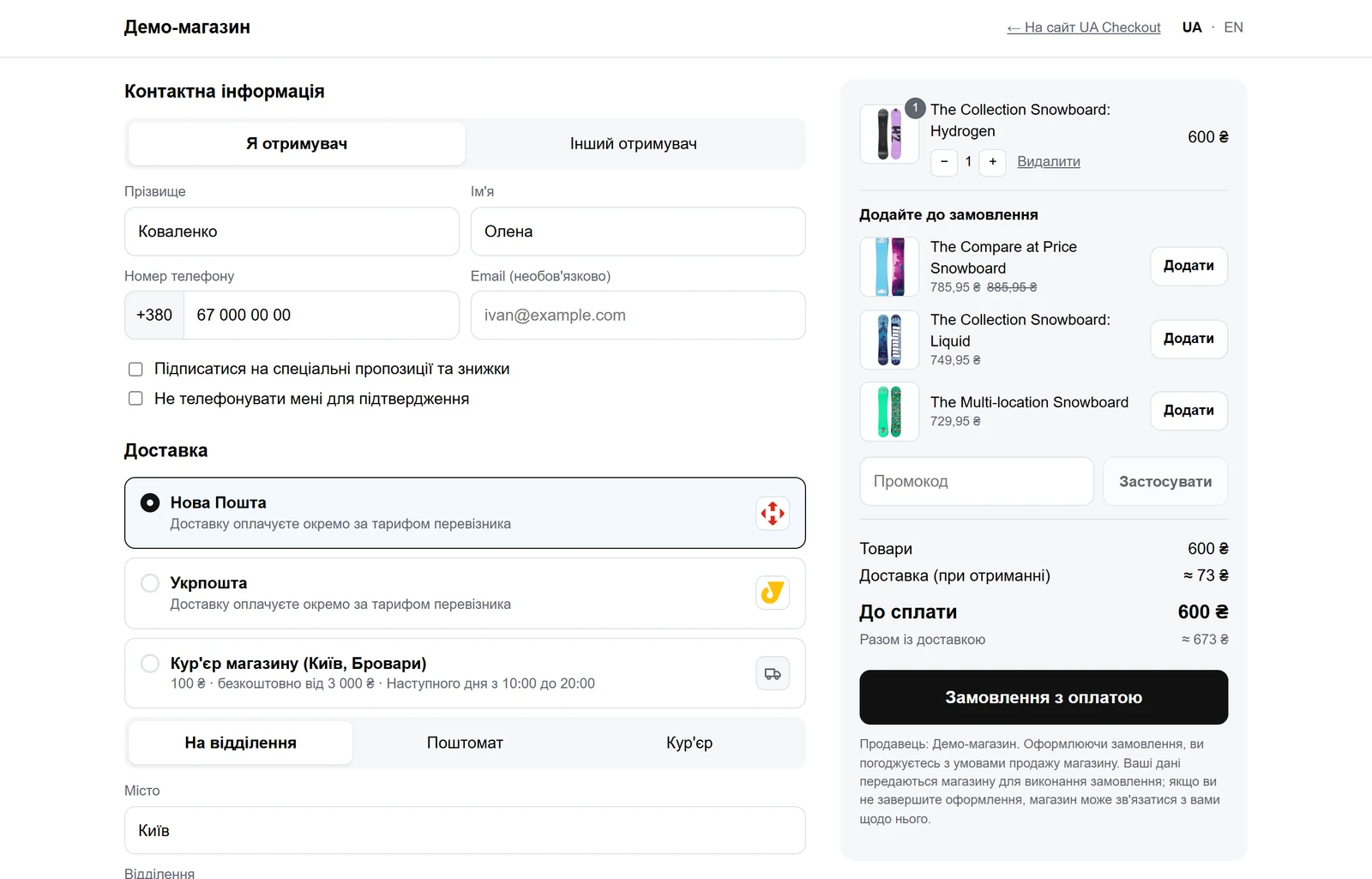
Prices, discounts and stock levels for the added product are calculated by Shopify itself, just as for the rest of the cart. The completed order is created in the Shopify admin with all products, delivery, payment method and tags.
What the buyer and the store get
| Buyer | Store | |
|---|---|---|
| Where the offer is seen | On the checkout page, next to the cart | Recommendations are managed in Shopify Search & Discovery |
| How the product is added | With a single tap, without returning to the cart | The product goes into the same Shopify order |
| Price and discounts | Recalculated instantly | Calculated by Shopify, no manual edits needed |
| Delivery | Sees the updated Nova Poshta price before paying | The price takes into account the weight of each product from Shopify |
Weight deserves attention. The Nova Poshta delivery price in UA Checkout is calculated from the weight of each product in Shopify (or the default weight), the packaging weight and the parcel size. So the delivery price may change after a product is added. Make sure the products in the upsell block have a weight set: the dashboard shows products that have no weight in Shopify.
How to set up upselling at Shopify checkout
- Install the Shopify Search & Discovery app if your store does not have it yet.
- In the app’s recommendations section, choose your best-selling products and add complementary products to them. Review the selection of related products from Shopify.
- Connect UA Checkout: the dashboard has a step-by-step guide on how to create an app in the Shopify Dev Dashboard and paste in the Client ID and Client Secret. The script is installed in your theme automatically; connecting takes about 15 minutes and does not require a developer.
- If anything is unclear, message support on Telegram: help with connecting is free.
- Add a product you set recommendations for to the cart and go to checkout. Make sure the “Add to your order” block shows the right products.
If you are switching from another checkout, you can check all of this in test mode: buyers stay on your current checkout, and only those who open the store via a special link see the UA Checkout button. Find out more in the article on how to test a new checkout before switching.
How to choose products for upselling
A few practical rules that are easy to test on your own catalogue:
- Offer add-ons, not replacements. A complementary product should go with what is already in the cart, not compete with it.
- Choose products that are in stock. Stock levels are calculated by Shopify, so how up to date your catalogue is directly affects the block.
- Keep free delivery in mind. UA Checkout lets you offer free delivery with Nova Poshta or Ukrposhta above a certain order amount. An inexpensive complementary product can then help the buyer reach the threshold. You can describe your terms in text on the checkout page, at the top or in the delivery section.
- Take prepayment into account. If prepayment per unit of product is enabled, the prepayment amount grows with the number of units in the cart, but never exceeds the order total.
How to measure whether the average order value has changed
Promising a specific increase in average order value would be dishonest: everything depends on the catalogue and the selection. To see your own figures, the dashboard has the «Конверсія до і після» (Conversion before and after) report. It compares checkout conversion for equal periods (up to 30 days) before and after switching to UA Checkout, counting from the step where the buyer left a phone number or email. For context, the report shows orders per day and the average order value.
Buyers who left checkout can be brought back separately: see the article on Shopify abandoned checkouts.
Limitations worth knowing about
- Shopify only. The checkout upsell block is available only for Shopify. It is not offered for WooCommerce, OpenCart or PrestaShop.
- Only on the UA Checkout page. If UA Checkout is unavailable, buyers are automatically sent to the standard Shopify checkout, which has no such block. The same applies to the «Помічник для стандартного чекауту Shopify» (Assistant for the standard Shopify checkout) mode: checkout stays in Shopify Checkout.
- Without Pro the block is switched off. After the 5 days of free Pro, if you do not pay, UA Checkout is switched off for the store and buyers get the standard Shopify checkout.
- Shopify’s rules. Shopify’s API License and Terms of Use (section 2.3.18) and Terms of Service (1.8, 4.5) do not allow payments and orders to be processed outside Shopify Checkout without Shopify’s written permission. Similar services for Ukrainian stores have worked this way for years, but Shopify may restrict such integrations. UA Checkout points this out during connection and reduces the risk: by default only cash on delivery is enabled, and if the service is unavailable, an automatic switch to the standard checkout kicks in. Find out more in the article is a third-party Shopify checkout legal.
Upselling in checkouts for Shopify: a comparison
Based on data from public websites, as of November 2026:
| Checkout | Upsell | Plan |
|---|---|---|
| UA Checkout | “Add to your order” block powered by Shopify Search & Discovery | Pro, UAH 790 a month per store, 0% of sales |
| Chekly | Yes | Pro only: $60 a month plus 1% of each successful order |
| Plata | Yes | Growth, UAH 960 a month |
| Flux | Yes | «Розширений» (Advanced) only (check the price on the Flux website) |
| Splata | Yes | «Про» (Pro) (check the price on the Splata website) |
Competitors’ prices and terms may change, so check them on the services’ websites. A fuller comparison with Chekly and Plata is on the comparison page, and general selection criteria are collected in the article checkout for Shopify in Ukraine: how to choose a solution.
How to see the checkout page before connecting
In the UA Checkout demo you can go through checkout exactly as the buyer sees it: real Nova Poshta branches and delivery prices, all payment methods and the thank-you page. No order is created and no money is charged.