If your Shopify store sells in Ukraine and your managers process orders in SalesDrive, transferring data takes up most of the time: which Nova Poshta branch or warehouse the buyer chose, how they are paying, which ad they came from. Without an integration, this data has to be copied manually or pieced together from order notes.
In this article, we explain what connecting SalesDrive and Shopify via UA Checkout gives you, how to set it up, what happens after an order is placed, and where the limits of this integration lie.
What gets into SalesDrive from a Shopify order
Once SalesDrive is connected in the UA Checkout dashboard, every order is sent to the CRM along with the following data:
- Nova Poshta delivery: city, branch, parcel locker or courier address;
- the selected payment method, for example cash on delivery, monobank or LiqPay;
- UTM tags and ad click IDs, so that the manager and the marketer can see where the order came from.
At the same time, the order itself is created in your Shopify admin with delivery, payment method and tags. Prices, discounts and stock levels are calculated by Shopify.
| Who | What they get |
|---|---|
| Buyer | A one-page checkout with a choice of Nova Poshta branch or parcel locker, the real delivery price before payment and Ukrainian payment methods |
| Manager in SalesDrive | Orders with Nova Poshta and payment details, with no manual copying |
| Owner or marketer | UTM tags and click IDs in every order for ad analysis |
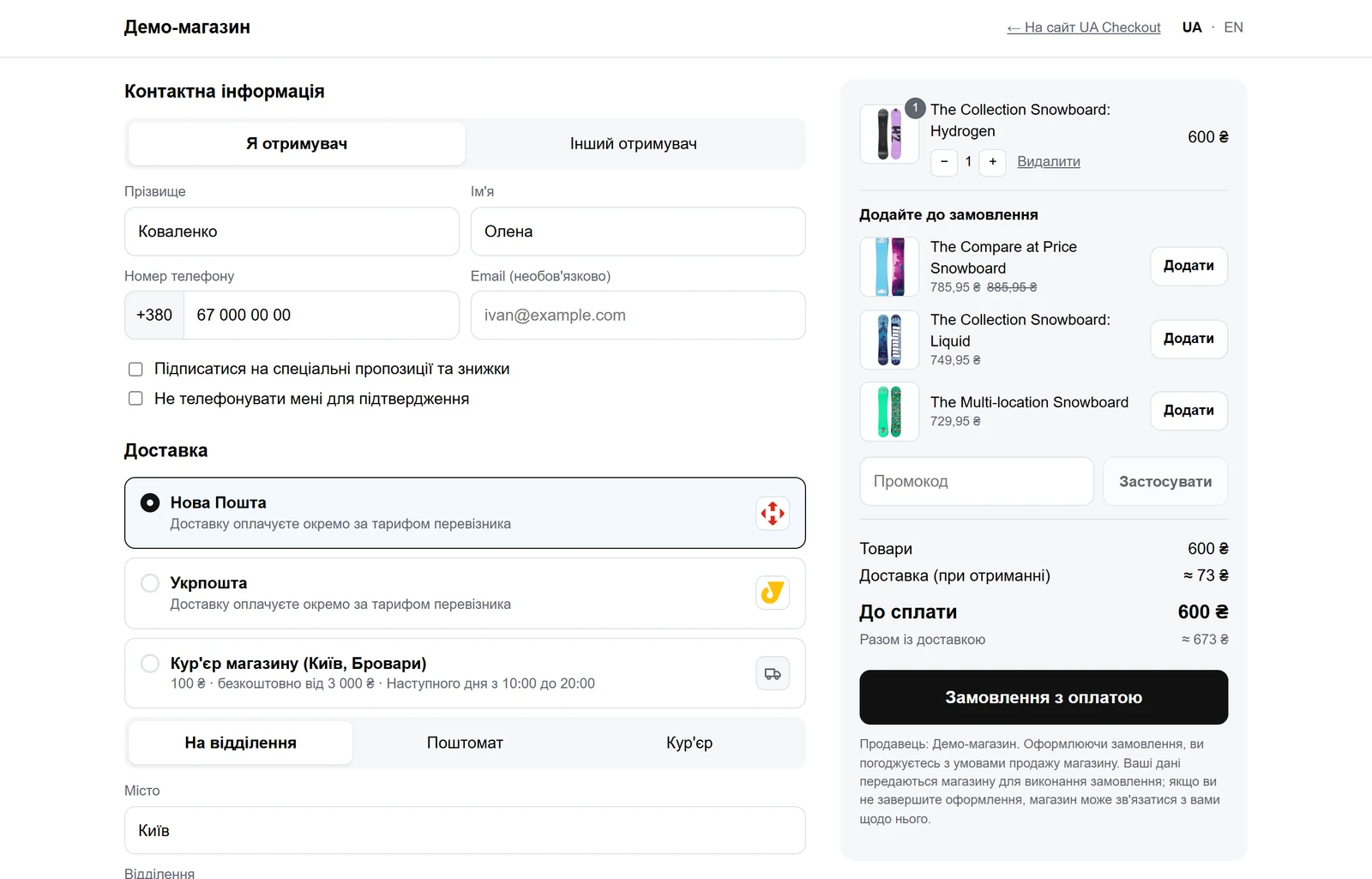
Two modes: the UA Checkout checkout or the assistant for the standard checkout
You can use SalesDrive with UA Checkout in two ways.
| UA Checkout page instead of the Shopify checkout | Assistant for the standard Shopify checkout | |
|---|---|---|
| Where the buyer checks out | On the UA Checkout page | In the standard Shopify checkout |
| Branch list and delivery price during checkout | Yes | No, the branch is determined from the address text |
| UA Checkout payment methods | Yes | No, the payment methods configured in Shopify apply |
| Sending to SalesDrive | Yes | Yes |
| Plan | Pro and the 5-day trial period | Pro and the 5-day trial period |
In assistant mode, the branch number is determined from the address the buyer entered (for example, “Branch No. 5” or just the number). If the branch is not recognised, the order is flagged in the dashboard. Read more about this mode in the article about the checkout assistant.
How to connect SalesDrive to Shopify via UA Checkout
- Sign up for the UA Checkout dashboard with Google, Apple, Telegram or email.
- Connect your store: following the step-by-step guide in the dashboard, create an app in the Shopify Dev Dashboard and paste its Client ID and Client Secret. The script that sends the “Check out” and “Buy it now” buttons to the UA Checkout page will be installed in your theme automatically.
- Add your Nova Poshta API key and the sender city.
- In the integrations section of the dashboard, select SalesDrive and enter the access details from your SalesDrive account. SalesDrive (salesdrive.ua) or UA Checkout support can tell you where to find them.
- Test the connection with a test order, then enable the checkout for all buyers.
Altogether, the setup takes about 15 minutes and does not require a developer. If something doesn't work, message support on Telegram: an AI assistant replies straight away, and typing the word «людина» (“human”) brings in the team. The assistant never asks for keys or passwords.
What happens after an order is placed
The order appears in Shopify and is sent to SalesDrive. You can then connect other integrations, each of which starts working once configured in the dashboard:
- Nova Poshta or Ukrposhta waybills (TTN) in one click or automatically, with the tracking number added to the Shopify order;
- fiscal receipts via Checkbox or Vchasno.Kasa;
- SMS and Viber messages to the buyer via TurboSMS or AlphaSMS;
- Telegram notifications for the owner.
If you are switching from another checkout, test mode lets you check everything on your live store. Test orders have the uac-test tag and the note «ТЕСТОВЕ ЗАМОВЛЕННЯ» (TEST ORDER), so they are easy to filter out in your CRM. Find out more in the article about test mode.
How much it costs
As of November 2026:
- trial: 5 days of Pro free from connection, with the SalesDrive integration;
- Pro: UAH 790 per month per store, with no order limit, 0% of sales. Pro includes the assistant for the standard checkout.
- There is no free plan.
No card is required for the trial. You can see what the checkout page looks like in the demo.
Limitations worth knowing about
- Without paid Pro after the trial, UA Checkout switches off: buyers are sent to the standard Shopify checkout and orders are not sent to SalesDrive via UA Checkout. There is no order limit on Pro.
- In assistant mode, there is no branch list, real delivery price or UA Checkout payment methods during checkout.
- Shopify's rules (API License and Terms of Use, section 2.3.18; Terms of Service, clauses 1.8 and 4.5) do not allow processing payments and orders outside Shopify Checkout without Shopify's written permission. Similar services for Ukrainian stores have worked this way for years, but Shopify may restrict such integrations. UA Checkout warns about this during setup and reduces the risk: only cash on delivery is enabled by default, and if UA Checkout is unavailable, buyers are automatically sent to the standard checkout. Find out more in the article about third-party checkout rules. These rules apply only to Shopify.
- On WooCommerce, OpenCart and PrestaShop, sending orders to a CRM is confirmed for assistant mode (Pro and the trial period). For other scenarios, check with support.
If you are still choosing a CRM, compare it with the KeyCRM and Shopify integration: it sends the same data. To get started, sign up for the dashboard.